In this tutorial I am going to show you how you can create a connection to a local Oracle database with the SQL Developer. The SQL Developer is a very powerful and free integrated development environment (IDE) for developing and managing source code in an Oracle database (Oracle Cooperation n.d.). Even I am used to eclipse and prefer this IDE in any other development projects I have to admit that with none of the available eclipse plugins I was able to gain more benefits than with the SQL Developer.
Before you start reading this tutorial, I recommend you have a look at my post about installing the Oracle database on Ubuntu 14.041.
Before you move to the next sections, ensure that the local database is running:
sudo /etc/init.d/oracle-xe startDatabase Configuration
Before we start to create a connection to our local Oracle database I want to create a new database user. I will also use this user for further demonstration purposes in my blog. Since I assume you have the system privileges you need to create a new user you should be able to execute the creation and grant commands:
adam@adam-desktop:~$ sqlplusSQL*Plus: Release 11.2.0.2.0 Production on Wed Jul 30 20:21:09 2014Copyright (c) 1982, 2011, Oracle.  All rights reserved.
Enter user-name: systemEnter password:Connected to:Oracle Database 11g Express Edition Release 11.2.0.2.0 - 64bit Production
SQL> CREATE USER cdo IDENTIFIED BY pass1234;User created.
SQL> GRANT CONNECT,RESOURCE,DBA TO cdo;Grant succeeded.
SQL> GRANT CREATE SESSION TO cdo;Grant succeeded.
SQL> exit;
Lets test whether the cdo user (‘cdo‘ stands for creative-doing) was created successfully and whether we are able to connect with the user’s credentials.
adam@adam-desktop:~$ sqlplusSQL*Plus: Release 11.2.0.2.0 Production on Wed Jul 30 20:32:22 2014Copyright (c) 1982, 2011, Oracle.  All rights reserved.
Enter user-name: cdoEnter password:Connected to:Oracle Database 11g Express Edition Release 11.2.0.2.0 - 64bit Production
SQL> create table test_table (attribute1 integer, attribute2 integer);Table created.
SQL> select * from test_table;no rows selected
SQL> drop table cd.test_table;Table dropped.
SQL> exit;
Everything seems to work! Lets create the connection in our SQL Developer.
Connection Creation
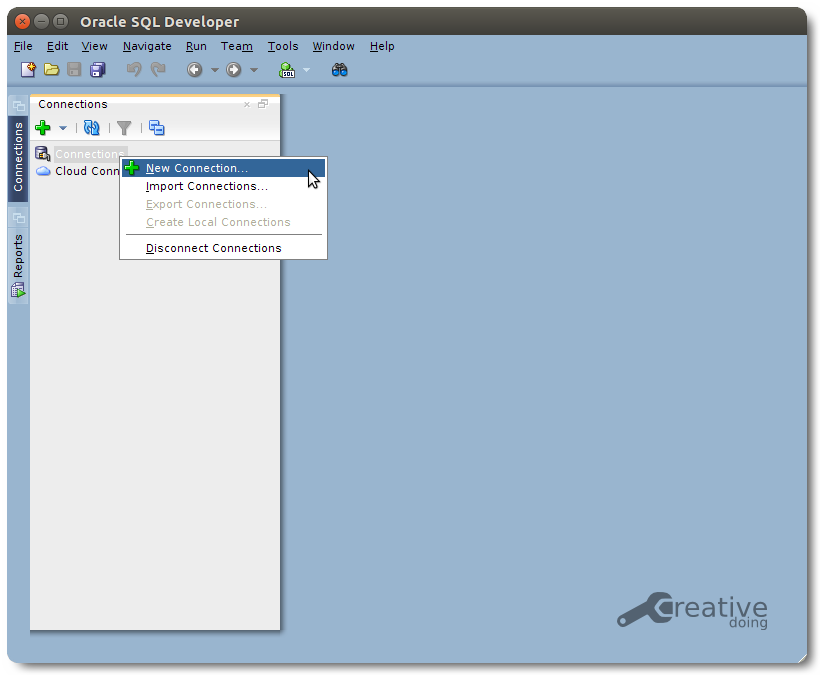
With the new _cd_o user we have got a database user which we can use for any testing or developing purposes. We start to create the connection in SQL Developer with opening the context menu in the connection view.
The SQL Developer prompts us for the connection data:
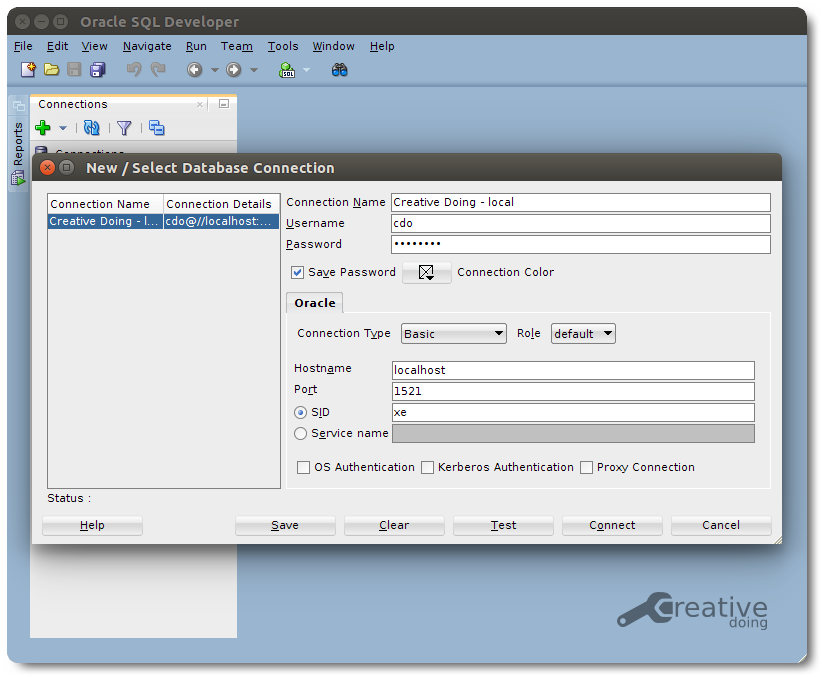
You need to enter the connection Hostname and SID (Oracle System ID) as well as the user’s credentials. Name and save the connection after running a test.
| Setting | Value |
|---|---|
| Connection Name | Creative Doing – local |
| Username | cdo |
| Password | ****** |
| Hostname | localhost |
| Port | 1521 |
| SID | xe |
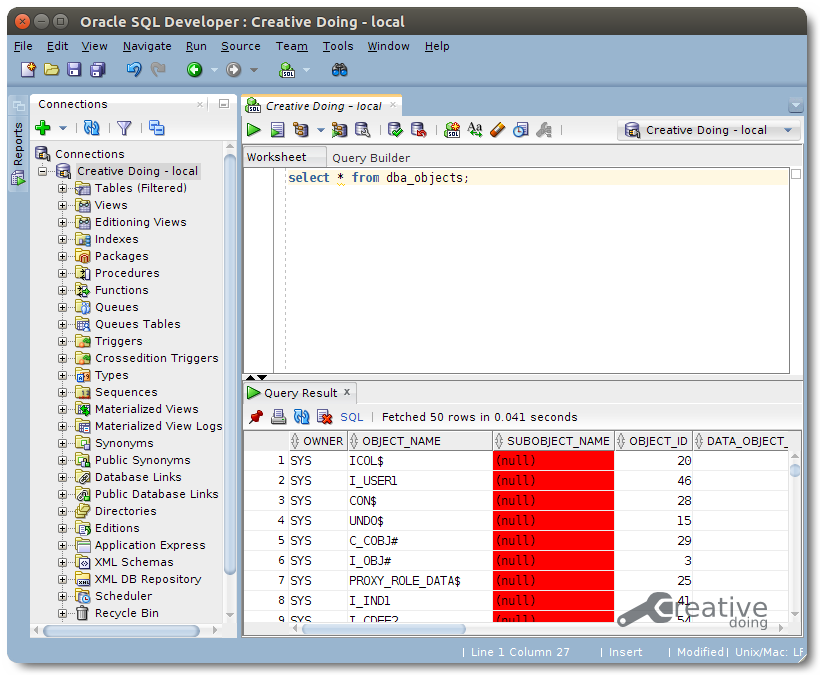
You will find a new connection entry in the connection view. Now you can execute some SQL queries.
The Connections Tree is one of the most frequently used views in SQL Developer. It gives you an overview of the objects defined in your database for the selected user, such as tables, data types, and packages.
Footnotes
-
Lukaszewski A. Install Oracle 11gR2 Express Edition on Ubuntu 14.04 (64-bit). creative-doing.de. Published July 31, 2017. Accessed July 31, 2017. ↩